Place Tomorrow's Trades Tonight: The One-Triggers-All Order Type
Here's the objection we hear most, and it has nothing to do with strategy:
"I have a job. I can't be watching the market at 9:30 in the morning."
Good news. You don't have to be. Not at 9:30, not at lunch, not at the close.
There's an order type that lets you set up an entry and its matching downside protection in a single submission, at whatever hour you happen to be sitting at your kitchen table. Schwab calls it One-Triggers-All. It's been sitting on the order ticket the whole time, and almost nobody notices it, because it hides behind a small link labeled "+ Add Conditional."
"But I don't use Schwab." Fear not. The name changes from one brokerage to the next — Fidelity calls it Order Triggers Order (OTO) — but the mechanism isn't Schwab-specific, and we show the Fidelity version further down. Check your own brokerage for the specifics. For this tutorial, we're walking through it on Schwab's website.
When you've done it once, it generally takes about a minute or two.
What One-Triggers-All actually does
You submit two orders that are aware of each other.
Order 1 is your buy-stop — the entry. It sits inactive until the price rises to your stop level.
Order 2 is your sell-stop — the downside protection. And here's the part worth pausing on: Order 2 is only submitted if Order 1 fills. The protection arms itself at the exact moment you actually own the shares. Not before, when it would have nothing to protect. Not later, when you'd have to remember to go back and place it.
That's the whole idea. One trip to the order ticket, after hours, and both halves of the position are handled.
If you're new to what buy-stops and sell-stops are, read Buy Stop / Sell Stop Strategy Explained first — this page assumes you already know, and covers only where to click.
The walkthrough, on Schwab
This is on schwab.com in a desktop browser — as is the Fidelity example further down. Both of these are the full website rather than the phone app; if you can't find conditional orders on your brokerage's app, try their site. You'll recognize the right screen by the strip across the top: 1. Enter Order → 2. Verify Order → 3. Order Received. If you're on another brokerage, read this for the shape of the thing — the labels will differ, the sequence won't.
- Enter the symbol. Standard order ticket. Symbol field, Strategy set to Stock/ETF.
- Click "+ Add Conditional." It's a small blue link at the bottom-left of the ticket, next to "+ Add Order." This is the step everyone misses. The ticket reshapes itself and a Conditional dropdown appears at the top.
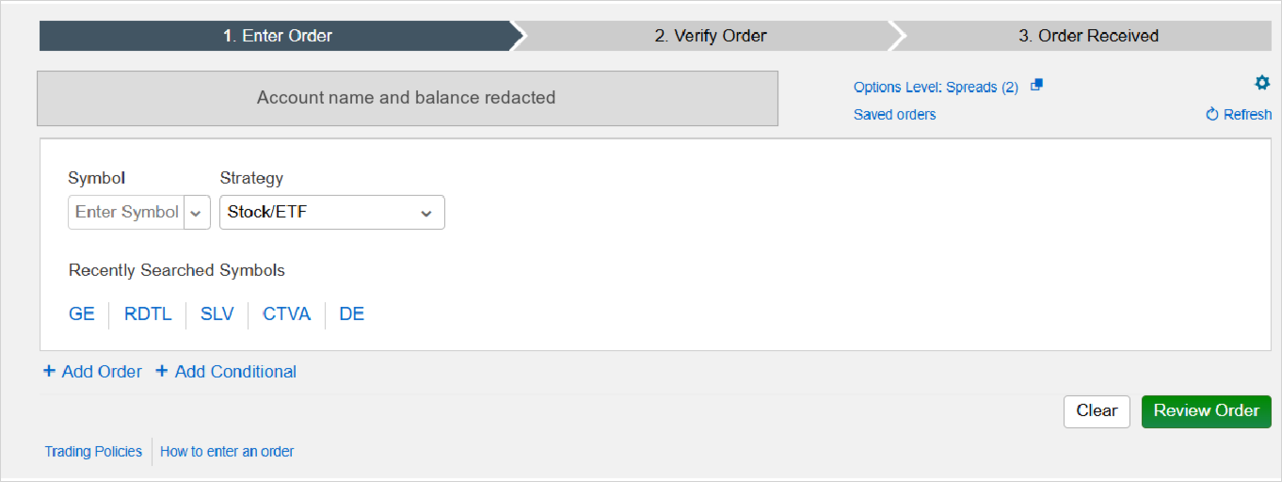
Illustrative example only — the symbols, price levels, quantities and dates shown in this screenshot are an exemplary walkthrough of the Schwab interface. They are not a recommended trade and must not be used as one. Account identifiers and balances are redacted. - Choose "Order 1 Triggers All." Schwab explains it right there next to the dropdown: Submit order 1. If filled, submit orders 2 and 3 (optional). You only need two, so ignore the optional third.
- Fill in Order 1 — the buy.
- Action: Buy
- Quantity: your share count
- Order type: Stop market
- Stop price: your entry level
- Timing: GTC (Good till canceled), plus the expiration date Schwab asks for
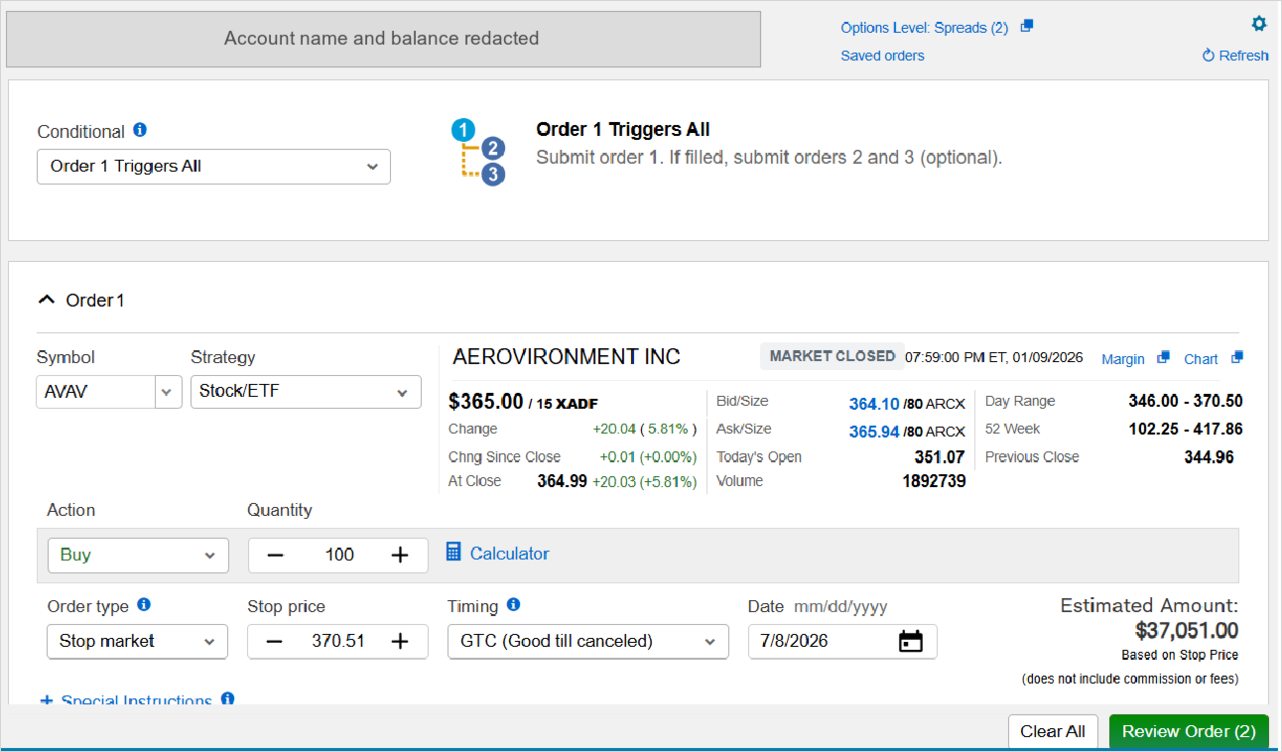
Illustrative example only — the symbols, price levels, quantities and dates shown in this screenshot are an exemplary walkthrough of the Schwab interface. They are not a recommended trade and must not be used as one. Account identifiers and balances are redacted. - Hit "Review Order." This doesn't submit anything. It opens Order 2 underneath.
- Fill in Order 2 — the protective sell.
- Action: Sell
- Quantity: the same share count as Order 1
- Order type: Stop market
- Stop price: your downside level
- Timing: GTC, with its date
You'll also see a Cost basis method line on the sell — Schwab defaults it to First in first out (FIFO). Leave it alone unless you have a specific reason not to.
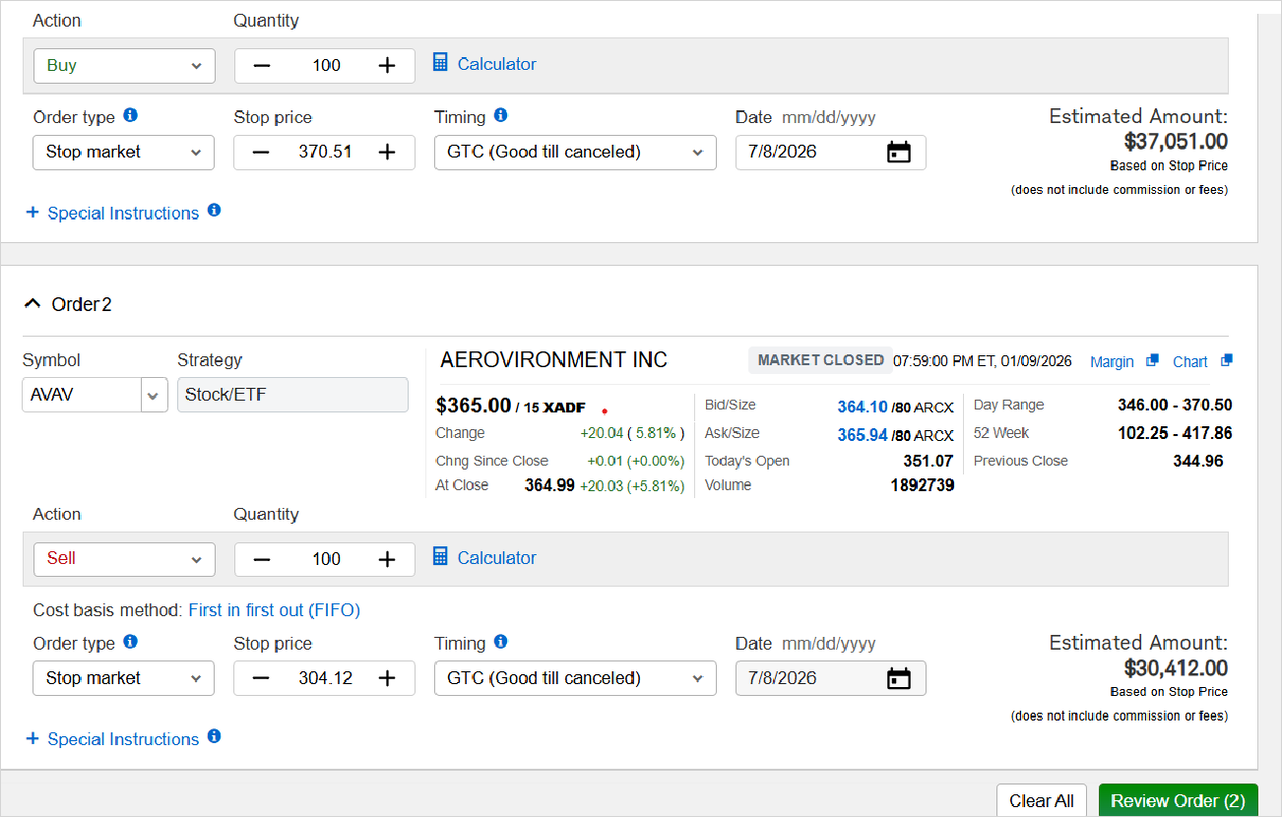
Illustrative example only — the symbols, price levels, quantities and dates shown in this screenshot are an exemplary walkthrough of the Schwab interface. They are not a recommended trade and must not be used as one. Account identifiers and balances are redacted. - Review, and actually read the summary. You land on the Conditionals Order Summary: both orders in plain English, the estimated amounts, fees, and commissions. Schwab also surfaces a warning here that deserves your attention rather than a reflexive click-through — when a stop order triggers, it becomes a market order. Depending on conditions at that moment, it can fill at a price meaningfully different from your stop price. That's true of every stop order at every brokerage. It's not a Schwab quirk, and it's not a reason to avoid stops; it's just the thing to understand before you use them.
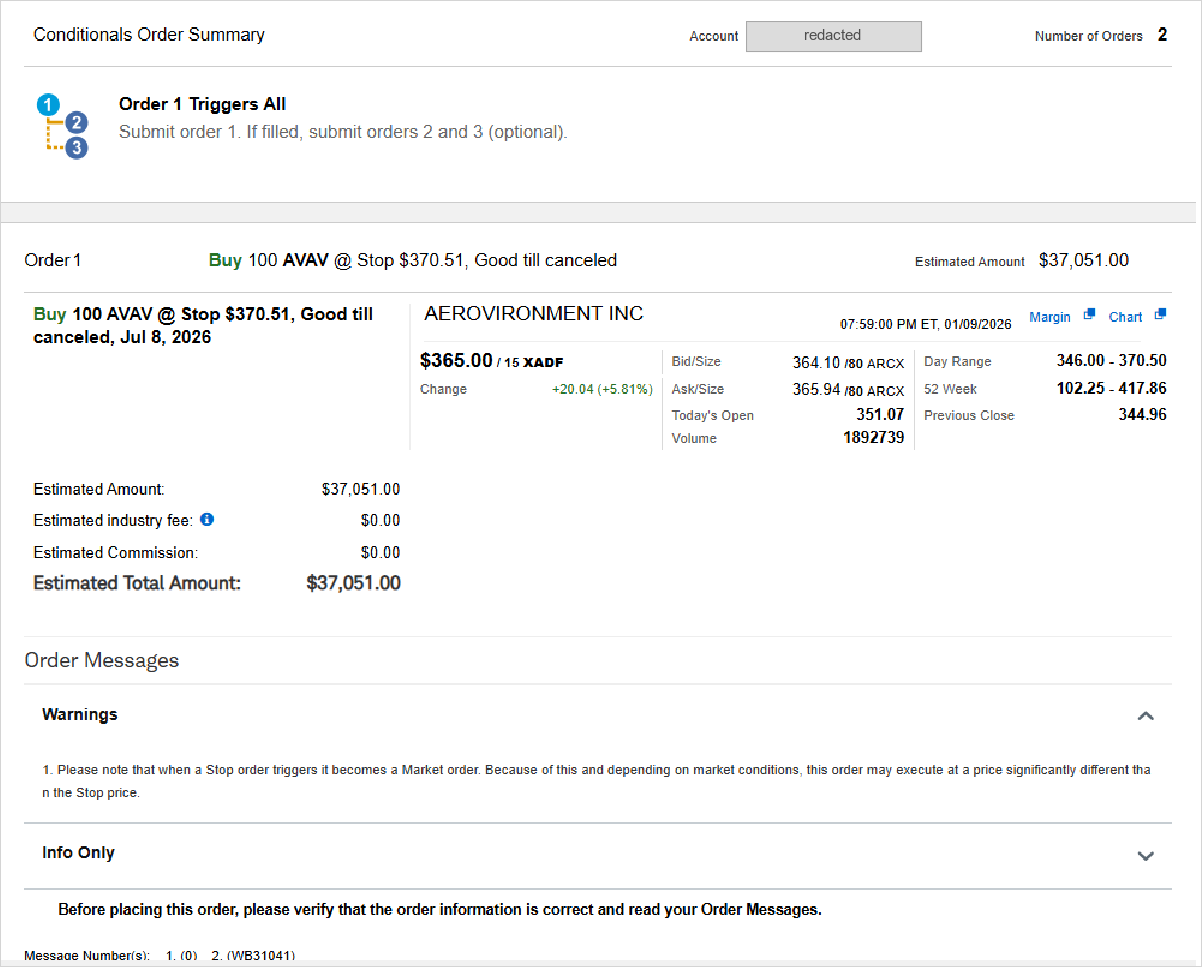
Illustrative example only — the symbols, price levels, quantities and dates shown in this screenshot are an exemplary walkthrough of the Schwab interface. They are not a recommended trade and must not be used as one. Account identifiers and balances are redacted. - Click "Place All Orders." You get 3. Order Received and two separate order numbers — one per leg.
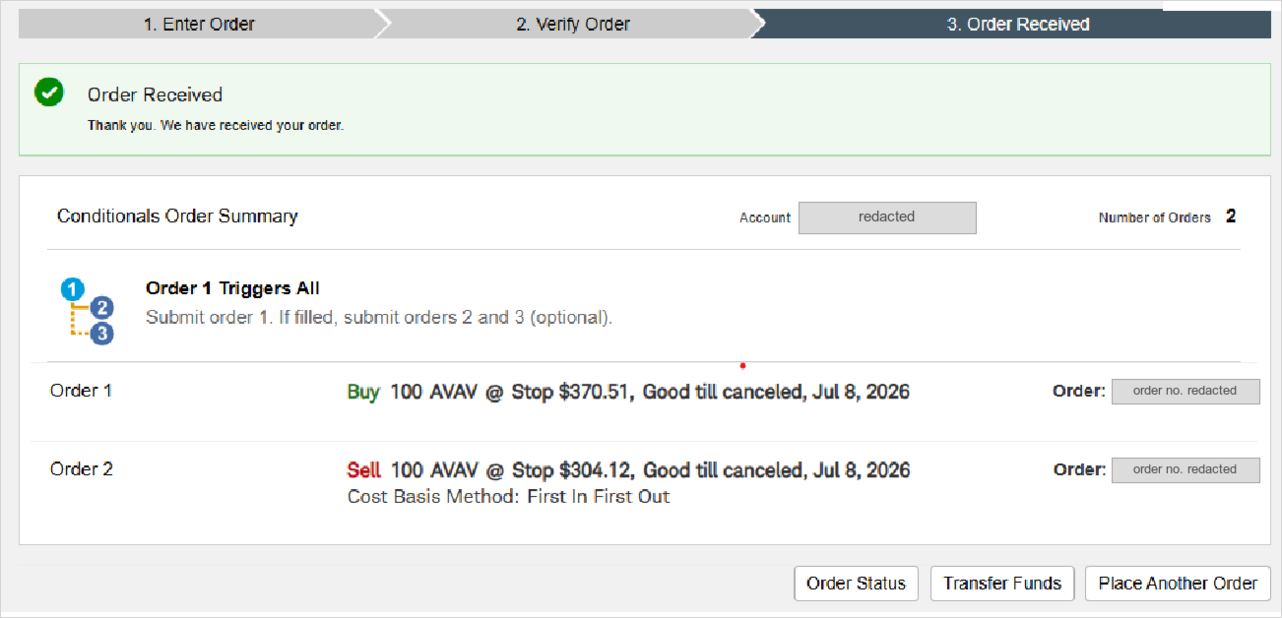
Illustrative example only — the symbols, price levels, quantities and dates shown in this screenshot are an exemplary walkthrough of the Schwab interface. They are not a recommended trade and must not be used as one. Account identifiers and balances are redacted. - Confirm on Order Status. Both legs appear, both marked open, both showing their GTC expiry. Your evening's work is done.
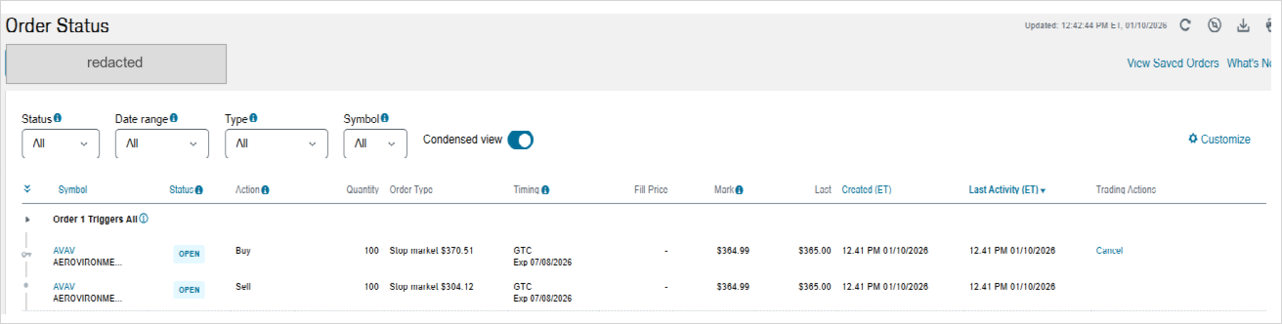
Illustrative example only — the symbols, price levels, quantities and dates shown in this screenshot are an exemplary walkthrough of the Schwab interface. They are not a recommended trade and must not be used as one. Account identifiers and balances are redacted.
(Any share counts or price levels you use are yours. Nothing in this walkthrough is a recommendation for a specific ticker, quantity, or price level.)
One rough edge on Schwab's web ticket, told straight
On the Order Status page, the Trading Actions column gives you Cancel. It does not give you Change.
So if you want to move a stop level on an existing conditional order, the web ticket won't let you edit it in place. Two options: cancel the pair and re-enter it — which, now that you know where "+ Add Conditional" lives, is a minute-or-two job — or make the edit in thinkorswim, Schwab's other platform, where conditional orders can be modified.
We've asked Schwab to add an edit option to the web ticket. Until it shows up, cancel-and-re-enter is the path of least resistance.
Same idea, different vocabulary: Fidelity
Here's the identical two-legged order on Fidelity's website — the trade panel, with trade type set to Conditional and conditional type set to OTO:
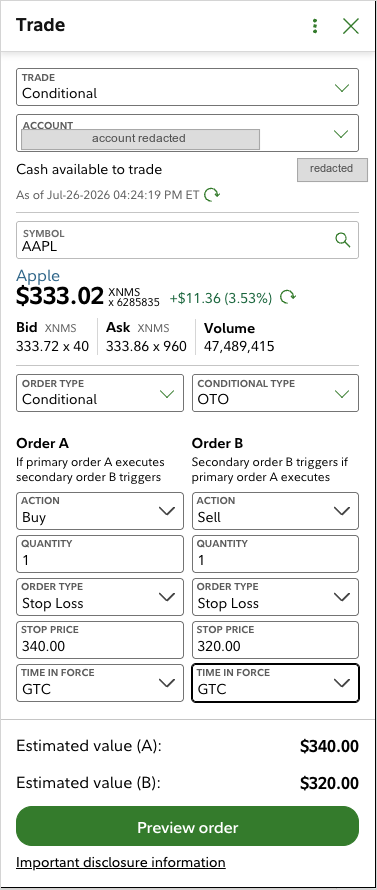
Different words, same shape:
| Schwab | Fidelity | |
|---|---|---|
| What it's called | One-Triggers-All | Order Triggers Order (OTO) |
| The two legs | Order 1, Order 2 | Order A, Order B |
| The stop order type | Stop market | Stop Loss |
Fidelity even spells the dependency out on the ticket itself — "If primary order A executes secondary order B triggers." That is the same sentence as Schwab's "Submit order 1. If filled, submit orders 2 and 3," in different clothes. Entry, protective exit, and the if-filled-then link between them: all three are present in both.
You'll also see this mechanism called contingent or bracket elsewhere. What it's named, where it lives, and exactly what it supports varies from platform to platform, so we're not going to hand-wave and tell you it's identical everywhere. It isn't — check your own brokerage's help pages or ask their support line. But if your brokerage supports conditional orders at all, the after-hours advantage is available to you too.
Schwab and Fidelity are simply the two we've documented first. More brokerage walkthroughs are on the way. In the meantime, if you want the mobile-app version of the basics — buy-stop, sell-stop, edit, cancel, at Fidelity, Schwab, and Robinhood — we've filmed all twelve: the video walkthroughs.
And to be clear about what we do and don't do: investment.tips works with any brokerage that allows daily trading — Fidelity, Schwab, Robinhood, and many others. We're not affiliated with any of them. You place every trade yourself, at the brokerage you already use. investment.tips never touches your accounts.
Why this matters more than it sounds like it should
The real barrier to using a systematic process isn't understanding it. It's the quiet suspicion that it will eat your day.
It won't. Conditional orders mean the market can open, move, trigger your entry, arm your protection, and close again — while you're in a meeting, on a plane, or asleep. You did the thinking last night. The order does the rest.
That's the version of this that's actually sustainable. If you want the routine that goes around it, that's Make Investing a Daily Habit.
This is not investment advice. All investment decisions are your responsibility. Past performance does not guarantee future results.